


Introduction
In today’s visually driven world, the ability to combine images on your smartphone can be incredibly useful, whether you’re creating side-by-side comparisons, making creative collages, or documenting progress over time. If you’ve ever asked yourself, “How to Merge Photos on iPhone?”, you’ll be glad to know that Apple offers both built-in tools and third-party apps to make the process seamless and efficient.
From Apple’s native Shortcuts app to user-friendly design platforms like Canva and even quick collage features in apps like Google Photos and PhotoGrid, iPhone users have access to a variety of ways to merge photos without needing advanced graphic design skills.
Each method caters to different preferences, whether you want fast automation or total design control, ensuring there’s a solution for everyone. Whether you’re creating a simple comparison image or an elaborate visual story, knowing how to merge photos on iPhone can enhance your creativity and simplify your photo editing process.
| Method | Key Features |
| Apple Shortcuts | Automates merging; customizable layouts |
| Layout App (Instagram) | Easy collage; 2-9 photos; drag & flip |
| Canva | Advanced design; add text & effects |
| PhotoGrid | Up to 15 photos; templates & filters |
| Google Photos | Quick automatic collage (up to 9 photos) |
| Manual (Pages/Keynote) | Manual positioning; export as image/PDF |
How to Merge Photos on iPhone?
If you’re wondering how to merge photos on iPhone, there are several effective and user-friendly methods available that cater to different needs. One of the most seamless ways is by using Apple’s native Shortcuts app, which allows you to automate the merging process by creating a custom shortcut.
This involves selecting multiple images, choosing how they should be combined—horizontally, vertically, or in a grid—and then saving the result directly to your Photos app. For those looking for more creative flexibility, apps like Canva let you manually arrange images on a canvas with the ability to add text, filters, icons, and background colors, ideal for social media content or digital scrapbooking.
Another popular option is PhotoGrid, which supports up to 15 images and offers various layout templates, spacing controls, and visual effects to create dynamic collages. Additionally, users of Google Photos can take advantage of the app’s built-in collage tool for quick and automatic photo merges.
Why Merge Photos on iPhone?
Before we dive into the how-to, here are some of the most common reasons iPhone users merge photos:
- To compare two or more images side by side
- To create personalized photo collages
- To document progress (fitness, home renovation, art projects)
- To create aesthetic layouts for social media platforms like Instagram, Pinterest, or Facebook
- To tell visual stories through grouped images
- To save space by consolidating related images
Merge Photos Using Apple’s Shortcuts App
Apple’s Shortcuts app allows users to automate a wide range of tasks on iOS devices, including merging photos quickly and efficiently. To begin, open the Shortcuts app. If it’s not already installed on your iPhone, you can easily download it from the App Store. Once inside the app, tap the plus (+) icon in the top-right corner to create a new shortcut, then tap “Add Action.”
In the search bar, type “Select Photos” and add this action to your shortcut. Make sure to enable the “Select Multiple” toggle so you can choose more than one photo at a time. Next, search for the action “Combine Images” and add it to your shortcut. You’ll be prompted to choose a layout, horizontal, vertical, or grid, depending on how you want the images to be arranged. After setting your preferred layout, add another action called “Save to Photo Album.”
This step ensures that the final merged image will automatically be saved to your Photos app. Once your shortcut is fully set up, tap the play button (►) to run it. Select the images you want to merge, and the shortcut will generate the combined image and store it in your photo library. This method is ideal for users who want a quick, native, and customizable way to merge photos without downloading third-party apps.
Use the Layout App by Instagram
How to Use It?
- Download Layout from Instagram via the App Store.
- Open the app and allow access to your photos.
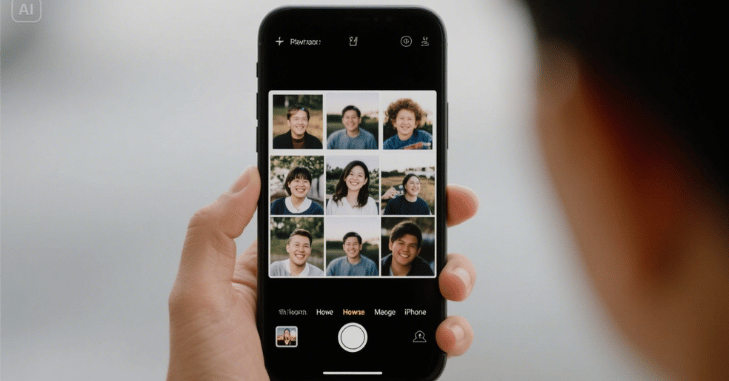
- Select 2 to 9 images that you want to merge.
- The app automatically shows several layout options: side-by-side, vertical stacks, grids, etc.
- Customize the layout by dragging, flipping, or mirroring individual images.
- Tap Save once you’re happy with the design.
- The merged photo is automatically saved to your photo library, and you can also share it to social media platforms instantly.
Merge Photos with Canva for Advanced Design
Canva is a robust and free design tool that provides users with greater creative control over how their photos are merged, making it an excellent option for both casual and professional use. To begin, install the Canva app from the App Store and either create a free account or log in if you already have one. Once you’re inside the app, tap the plus (+) button to start a new project.
You can choose a blank canvas or select from one of Canva’s many ready-made templates, depending on your design preferences. Next, go to the Uploads tab and import the photos you want to merge. Drag and drop the images onto the canvas and arrange them in any configuration you prefer, whether that’s side by side, stacked, angled, or creatively overlapped.
Merge Photos Using PhotoGrid
PhotoGrid is another easy-to-use photo collage and editing app that offers a wide range of layout options for merging photos on your iPhone. To get started, download PhotoGrid from the App Store and open the app. From the main screen, tap on the Grid option, which is specifically designed for creating photo collages.
You’ll then be prompted to select your images; you can choose up to 15 at once, making it perfect for creating multi-photo layouts. After selecting your photos, explore the many available layout templates. PhotoGrid offers flexible designs that allow you to arrange your images in various styles.
You can also adjust the spacing between photos, modify border thickness, choose background colors, and apply filters to enhance the overall look. These features provide great customization while keeping the interface user-friendly. Once your collage looks the way you want, simply tap the Save button to export your final image to your camera roll.
Use Google Photos Collage Tool
| Step | Action |
| 1 | Open the Google Photos app. |
| 2 | Tap and hold to select multiple images (up to 9). |
| 3 | Tap the plus (+) icon and choose Collage. |
| 4 | Google Photos will automatically generate a collage. |
| 5 | The merged photo is saved to your Google Photos library. |
Manual Merge Using Pages or Keynote (Apple Apps)
Steps
- Open Pages or Keynote and create a new blank document.
- Tap the plus icon (+) and choose Photo or Video.
- Insert multiple images and manually position them however you like.
- Resize, overlap, or align them side-by-side.
- Once done, take a screenshot or export the document as a PDF or image.
Tips for a Clean and Professional Merged Photo
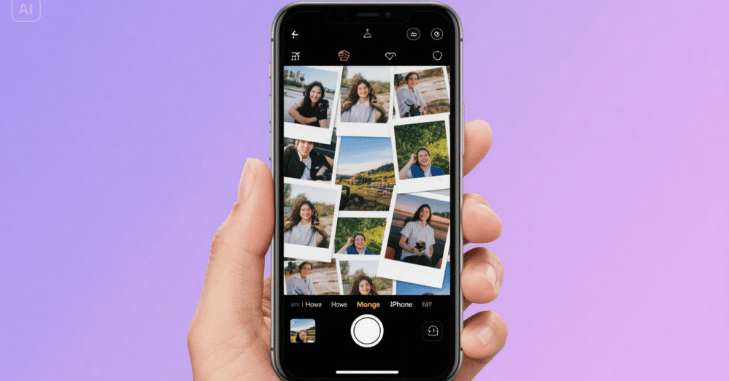
- Use consistent aspect ratios for each image to avoid awkward sizing.
- Edit and crop photos before merging for cleaner alignment.
- Add borders or spacing to improve visual separation between images.
- Keep image quality high by avoiding too much compression or low-res exports.
- Use portrait or landscape mode depending on your final output (e.g., Instagram posts or prints).
Read More: – Files Over Miles: Revolutionizing Remote File Sharing
Conclusion
Learning how to merge photos on iPhone? It unlocks a world of creative possibilities, from crafting beautiful layouts for social media to consolidating memories in a single, impactful image. Whether you prefer the automation of Apple’s Shortcuts app, the design flexibility of Canva, or the simplicity of Google Photos and PhotoGrid, there’s a merging method to match your goals and skill level.
With just a few taps, you can transform multiple images into a single polished visual, ready to share or save. So next time you’re capturing moments, know that combining them is as easy as it is fun, thanks to the versatile photo-merging options available right on your iPhone.
Want to know about “ROG Phone 7: Unleashing Next-Level Mobile Gaming with Cutting-Edge Performance, Design” Check out our “Tech” category.
FAQs
You can use third-party programs like PicCollage, Canva, or Adobe Photoshop Express, or you can do your own action with the Shortcuts app.
You can use picture editing software, specialized apps, or internet resources to merge several photos into one.
Use the Photos app’s “Add Sticker” feature or third-party photo editing programs like HashPhotos.
Open the Photos app on your iPhone, pick a picture, and then select Edit to make changes.
For more tips on organizing and designing your images, check out The Art of Organization: Practical and Stylish Office Table Designs.
